Converting a COLOR file to Black and White in Indesign

Table of Contents

Converting a file from Color to Black and White in Indesign!

*this post isn’t all that much of a post, but more so a how-to for inquiring minds 🤣

This is a super simple example of converting a color file in Indesign to Black and White in export! No more having to create multiple versions in color and black and white!!

Go to FILE – EXPORT
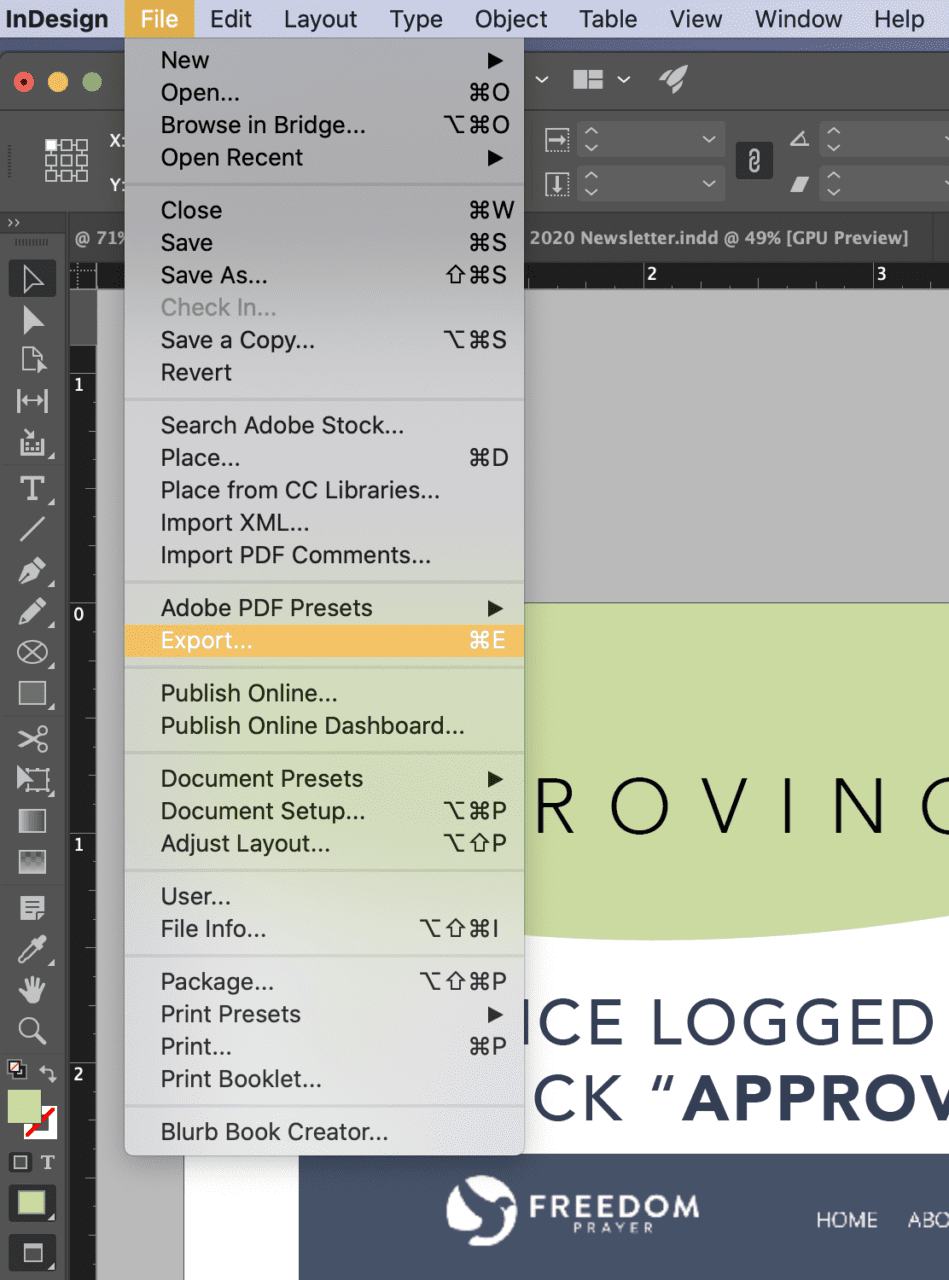
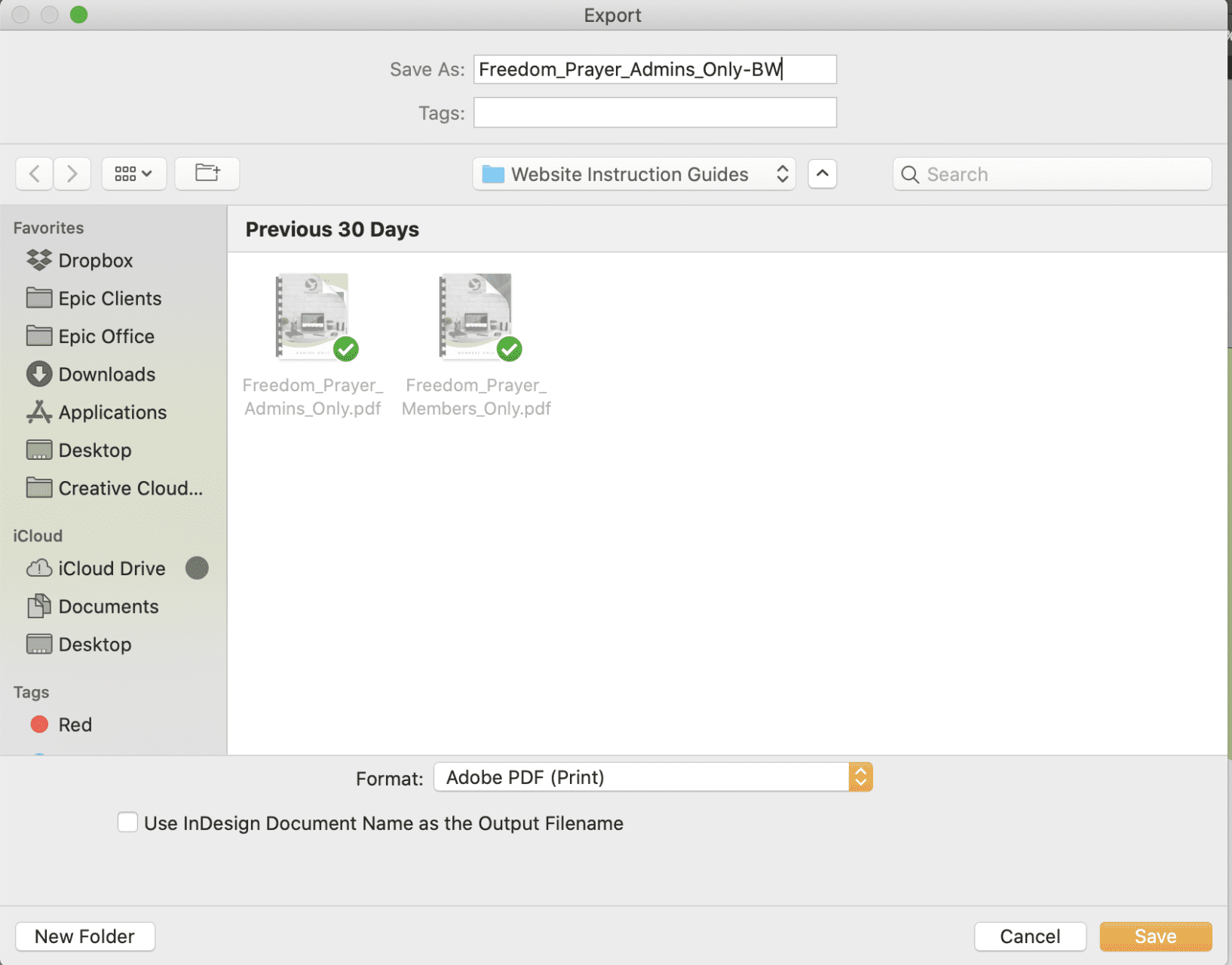
Name the file with – BW – last
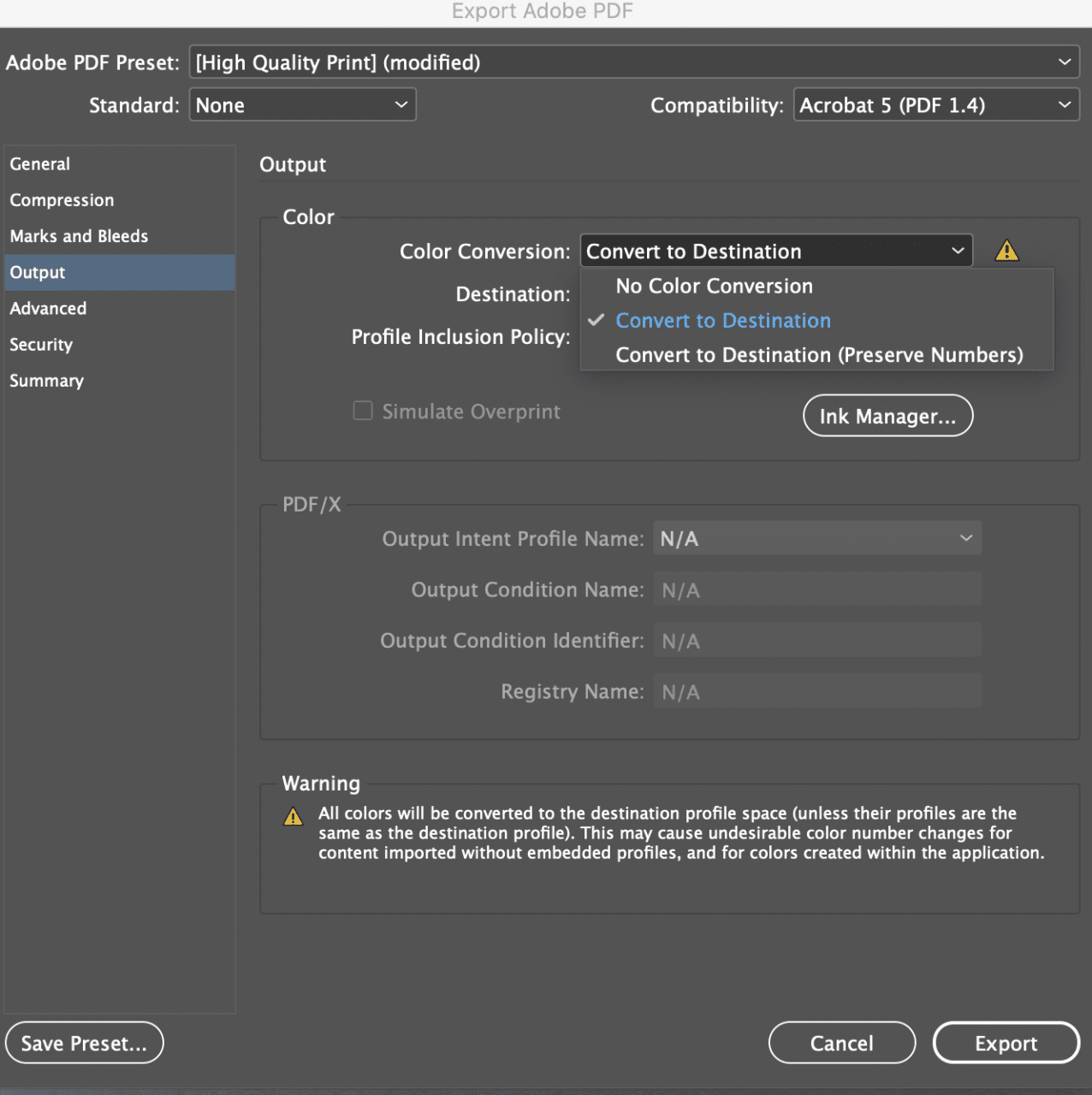
Go to OUTPUT – and select to CONVERT TO DESTINATION 
Select the Grayscale color profile, on my computer, it is called GENERIC GRAY PROFILE

Click export! You’re Done! 


Or this Step-by-Step Guide to Converting a File from Color to Black and White in InDesign

Step 1: Open Your InDesign Project

  • Launch Adobe InDesign and open the document that you want to convert to black and white.

Step 2: Select the Object

  • Click on the object (image or graphic) you want to convert to black and white.

Step 3: Open the Effects Panel

  • Go to Window > Effects to open the Effects panel.

Step 4: Apply the Grayscale Effect

  • With your object selected, click on the fx button at the bottom of the Effects panel and choose Grayscale.

Step 5: Adjust the Grayscale Effect

  • In the Grayscale effect settings, adjust the Tint slider to achieve the desired black and white effect. You can also adjust the Opacity if needed.

Step 6: Check and Adjust

  • Ensure that the grayscale effect looks correct. You can make further adjustments to the Tint and Opacity as needed.

Step 7: Save Your Work

  • Save your document by going to File > Save As to ensure your changes are preserved without overwriting the original file.

Tips:

  • For multiple objects, repeat the process for each one or group them before applying the grayscale effect.
  • For text, change the color to black using the Swatches panel.

Who Is Epic?

We long to make a difference in the world by providing innovative solutions that Love, Serve and Build.

We’re passionate about serving our partners quickly & efficiently with high-end graphic design, web development, SEO and social media.

Our team wears lots of hats as we tackle our partner’s projects and work seamlessly, passing tasks back and forth to ensure an excellent product and to be sure things keep moving quickly. We’d love to help serve you too!

Why Does My Website Look Different Than It Used To?

Why Does My Website Look Different? Most of the time, nobody made a mistake. WordPress, Elementor, browsers, and font services all update on their own schedules, and any one of those updates can nudge spacing, fonts, or button position on a site nobody has...

Read More

AI Search for Churches: How to Stay Found in 2026

AI & Your Church Google Search Just Changed. Here’s How Churches & Ministries Stay Found. Google just made the biggest change to its search box in over 25 years. Here’s what shifted, why it matters for your church or ministry, and the clear, doable...

Read More

Case Study: Ak Family

Partner Case Study: Ak Family - A Decade of Mission-Driven Partnership How Epic Life Creative helped Alaska Family Council grow from a minimal digital footprint into one of Alaska’s most visible faith-based advocacy organizations — and counting. 1,933+ Hours Served 10+ Years Together

Read More

Case Study: Reclaiming Hearts

Partner Case Study: Reclaiming Hearts - From a Calling and a Dream to a Ministry That Reaches the World How Epic Life Creative partnered with Reclaiming Hearts Ministries from day one, and has never stopped. 13+ Years of Partnership 3,300+ Hours Invested Together 400+...

Read More